Access Points
To support different work scenarios, Wukong provides a three-part access model built around deep local control, a secure cloud sandbox, and DingTalk-based mobile collaboration, so you can start intelligent workflows anytime and anywhere.
1. Local Desktop Client (Recommended for the Full Experience)
Best for: Daily office work, deep control over local files and applications, and long-term stable use.
How to get it: Download from the Wukong website
- System requirements:
- Windows 10 64-bit version 1909 or later (beta)
- macOS 14 or later (Apple Silicon, beta; Intel support coming soon)
- Key benefits:
- Local control: directly operate commonly used local software such as Excel, browsers, and IDEs
- Privacy and security: most data is processed locally without uploading to a cloud sandbox
- Best performance: uses local computing resources for the fastest response
2. Wukong Cloud PC
Best for: Users without a suitable local machine, quick trials, temporary tasks, and scenarios that require strong isolation.
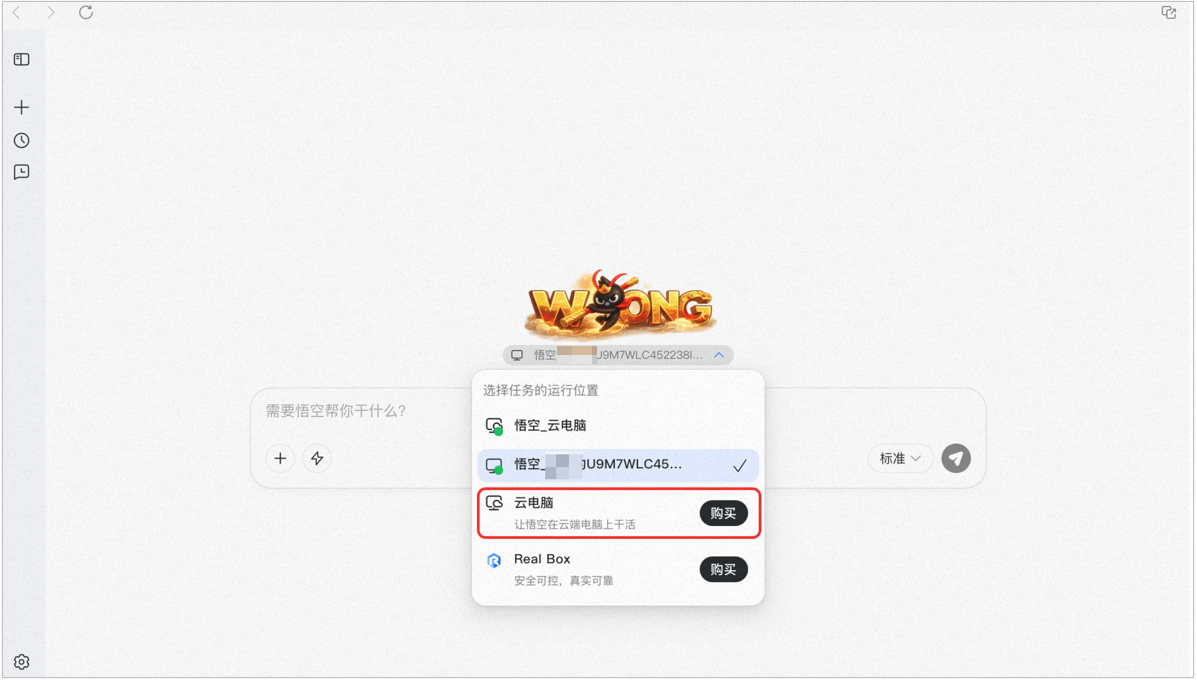
How to get it: Purchase a Wukong Cloud PC when enabling Wukong.
- Key benefits:
- Ready instantly: no local environment setup required, with startup in minutes
- Isolated environment: tasks run in a cloud sandbox without affecting local device security
- Cross-device access: remotely control your Cloud PC from lighter devices such as tablets and phones
Purchase path: DingTalk desktop client (bottom-left More in the PC nav bar) → Wukong → bottom-left Settings → Purchase Cloud PC
3. DingTalk Client Integration (Mobile and Desktop Management)
Best for: Starting tasks anytime, checking progress in real time, and mobile work.
- Key benefits:
- Anywhere access: supported on phone, tablet, and DingTalk desktop
- Instant notifications: DingTalk messages notify you when tasks finish, fail, or need confirmation
- Entry points:
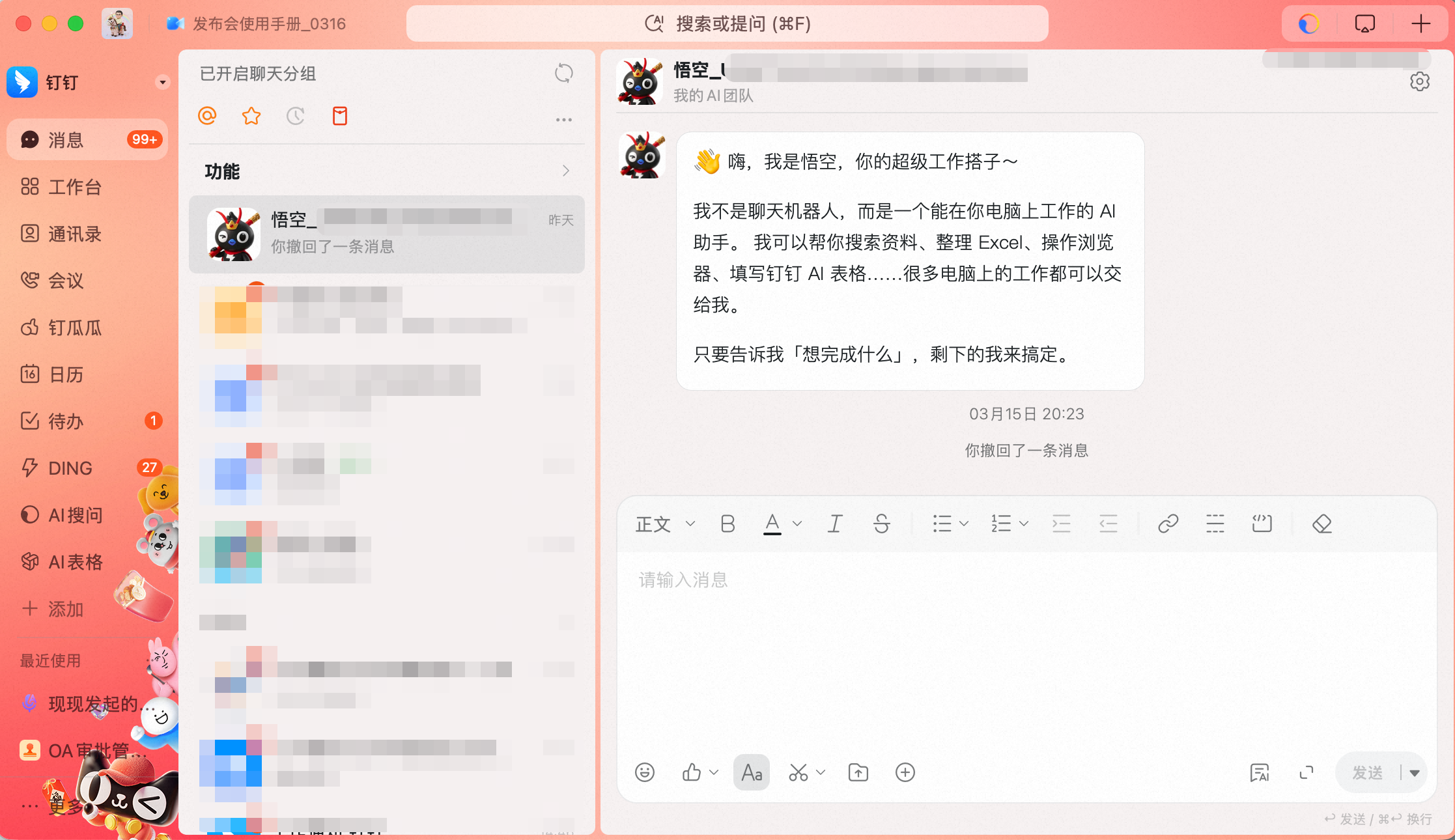
- IM bot: find Wukong in your DingTalk chat list and start tasks through conversation
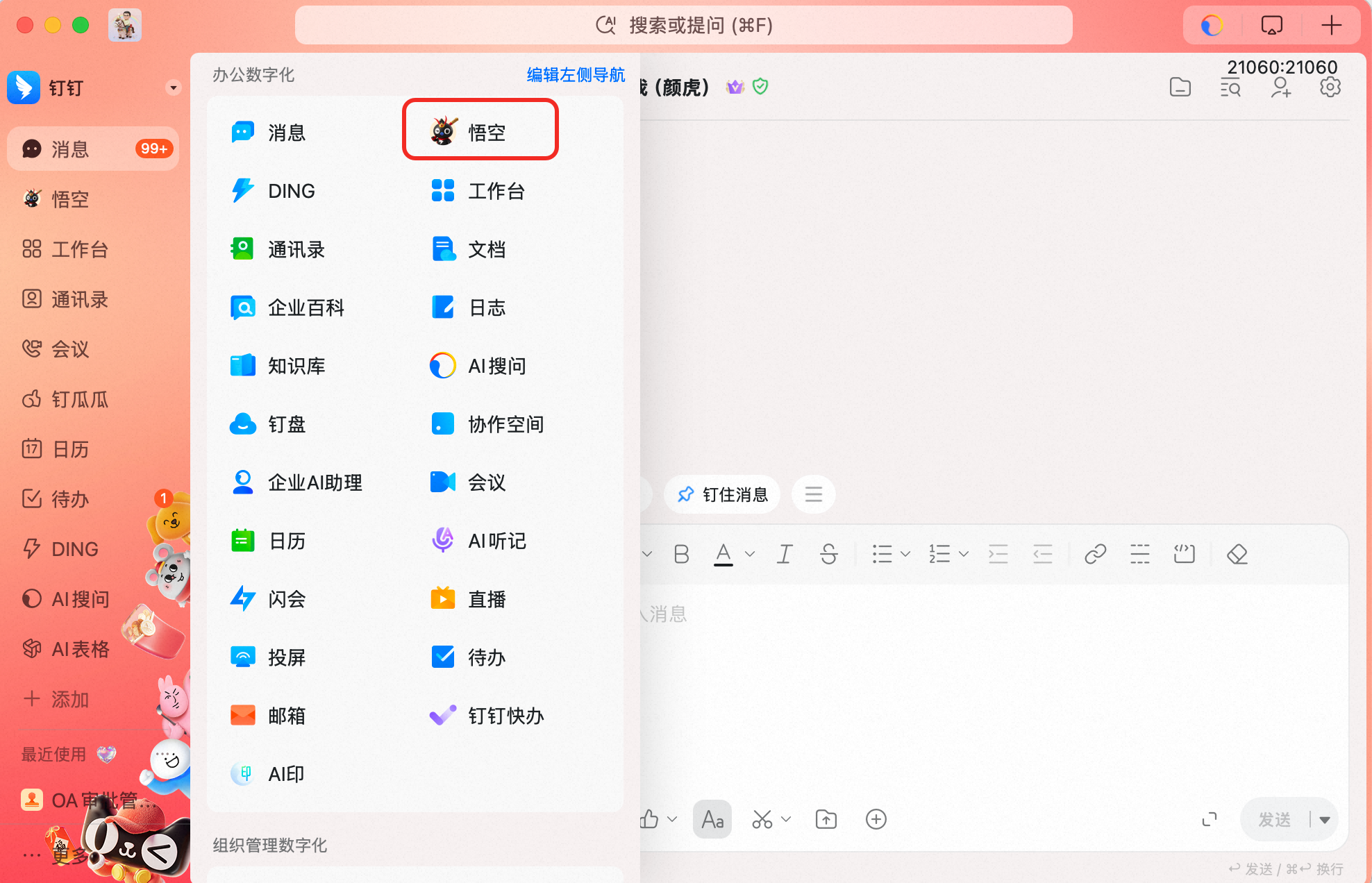
- Left workbench in the client: click More in the left sidebar of DingTalk, then click the Wukong app icon to open the visual management panel
- IM bot: find Wukong in your DingTalk chat list and start tasks through conversation