Sign In and First Use
Overview
Wukong uses DingTalk authorization for sign-in. If you already have a DingTalk account, you can sign in by scanning the QR code. If not, you can download DingTalk here. For more details, see How to register a DingTalk account.
Steps
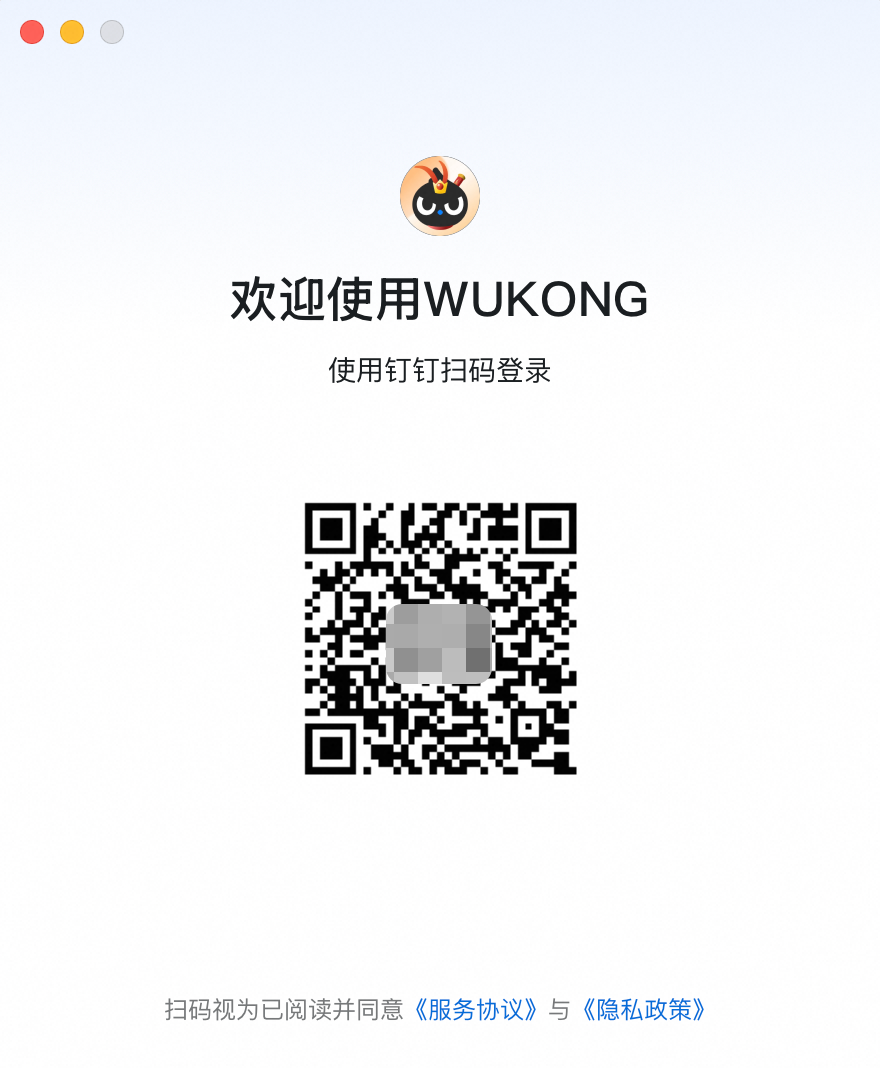
After downloading Wukong, open Wukong and sign in by scanning the QR code with your DingTalk account.
Wukong is currently in an invitation-only preview. Enter an invitation code to unlock access. You can get an invitation code from the Wukong website. For more details, see this guide.

Invitation code note: you can request an invitation code from the Wukong website. For more details, click here.
FAQ
Q: Can I only sign in to Wukong with a DingTalk account?
A: Yes. Wukong uses DingTalk authorization, so you need a DingTalk account. You can download DingTalk from the official website, register an account, and then sign in to Wukong by scanning the QR code. See How to register a DingTalk account for details.
Invitation code account error
If you see this error while entering an invitation code in Wukong, it usually means the currently signed-in DingTalk account type is restricted.
At the moment, student accounts, inactive DingTalk accounts, AI assistant accounts, and some special-channel test accounts cannot use Wukong due to permission model differences. Please switch to a personal account registered with a phone number and sign in again. If you still encounter the issue after switching accounts, provide your account information so it can be checked.
Q: Can I use Wukong by installing DingTalk only?
A: No. DingTalk acts as the controller, while the Wukong desktop client is the executor. You need both to complete the full task workflow.
Q: How do I clear data?
A: Because Wukong relies on DingTalk authorization, you cannot separately cancel a Wukong account. As long as your DingTalk account is active, you can sign back in to Wukong at any time. If you only want to clear local history and cache, use the reset option: Wukong → Avatar in the bottom-left → About → Reset App.
Note: data cannot be recovered after reset, so proceed carefully.

Q: Is multi-device sign-in supported?
A: Yes.